

Settings
Settings govern how Galaxy operates across your organization. They control access, permissions, team management, and personal preferences, ensuring that semantic understanding is governed, not fragmented.What Settings Are
Settings are organized into two main categories:- Workspace settings: Configuration that affects the entire workspace, including workspace information, team management, and user invitations
- User settings: Personal configuration for individual users, including profile information, display preferences, and account settings
Why Settings Exist
Settings ensure that semantic understanding is governed, not fragmented. They provide control over:- Workspace identity: Set workspace name and view workspace domain
- Team access: View team members and their roles, invite new users
- Personal experience: Configure personal profile and display preferences
- Access control: Understand who has access to your workspace and semantic models
Workspace Settings
Workspace settings control configuration that affects the entire workspace. They are organized into three sections:General
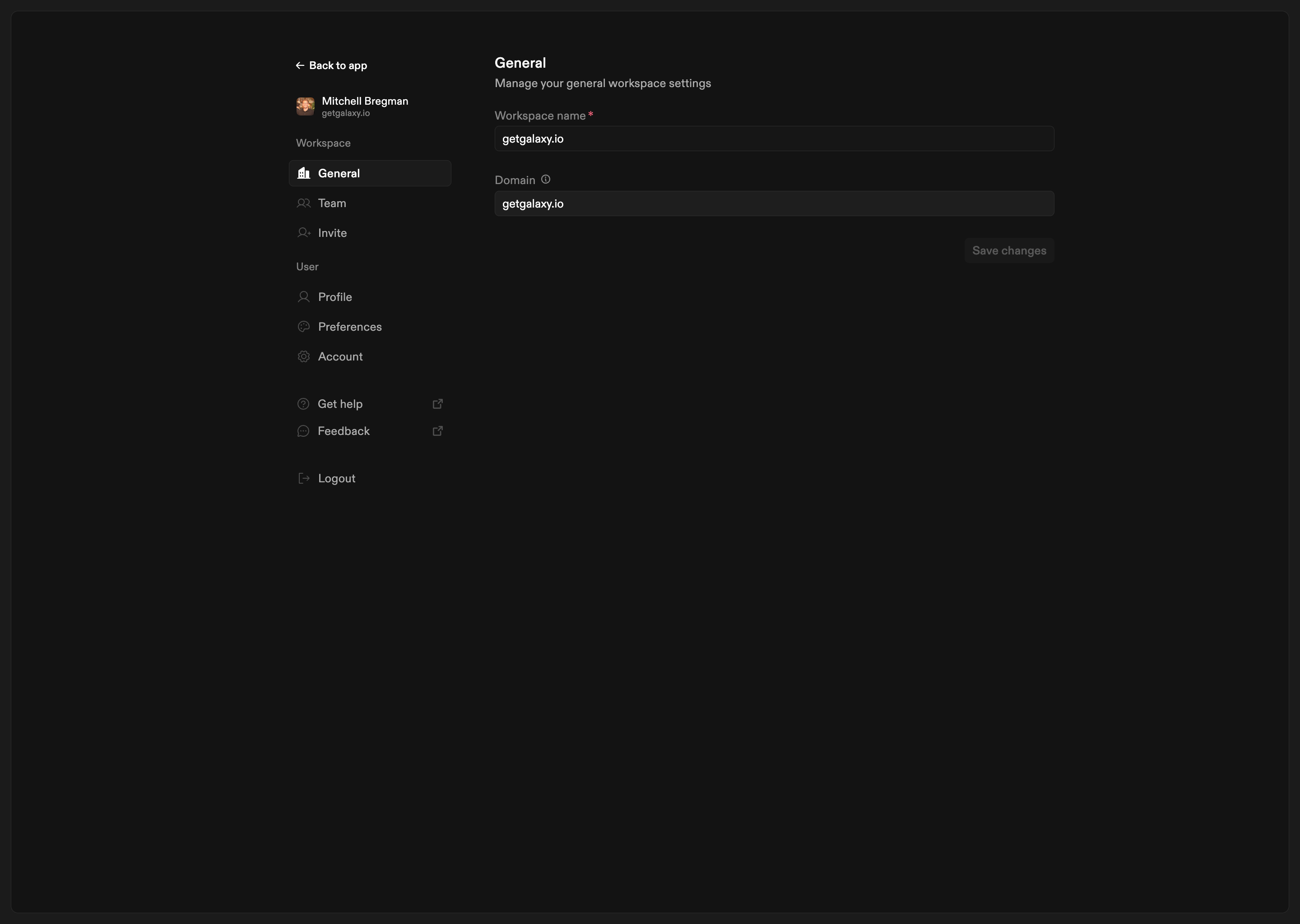
General settings control basic workspace information:- Workspace name: The name of your workspace. This can be updated at any time.
- Domain: The workspace domain. This is set when the workspace is created and cannot be modified afterward. Contact support if you need to change the domain.
Team
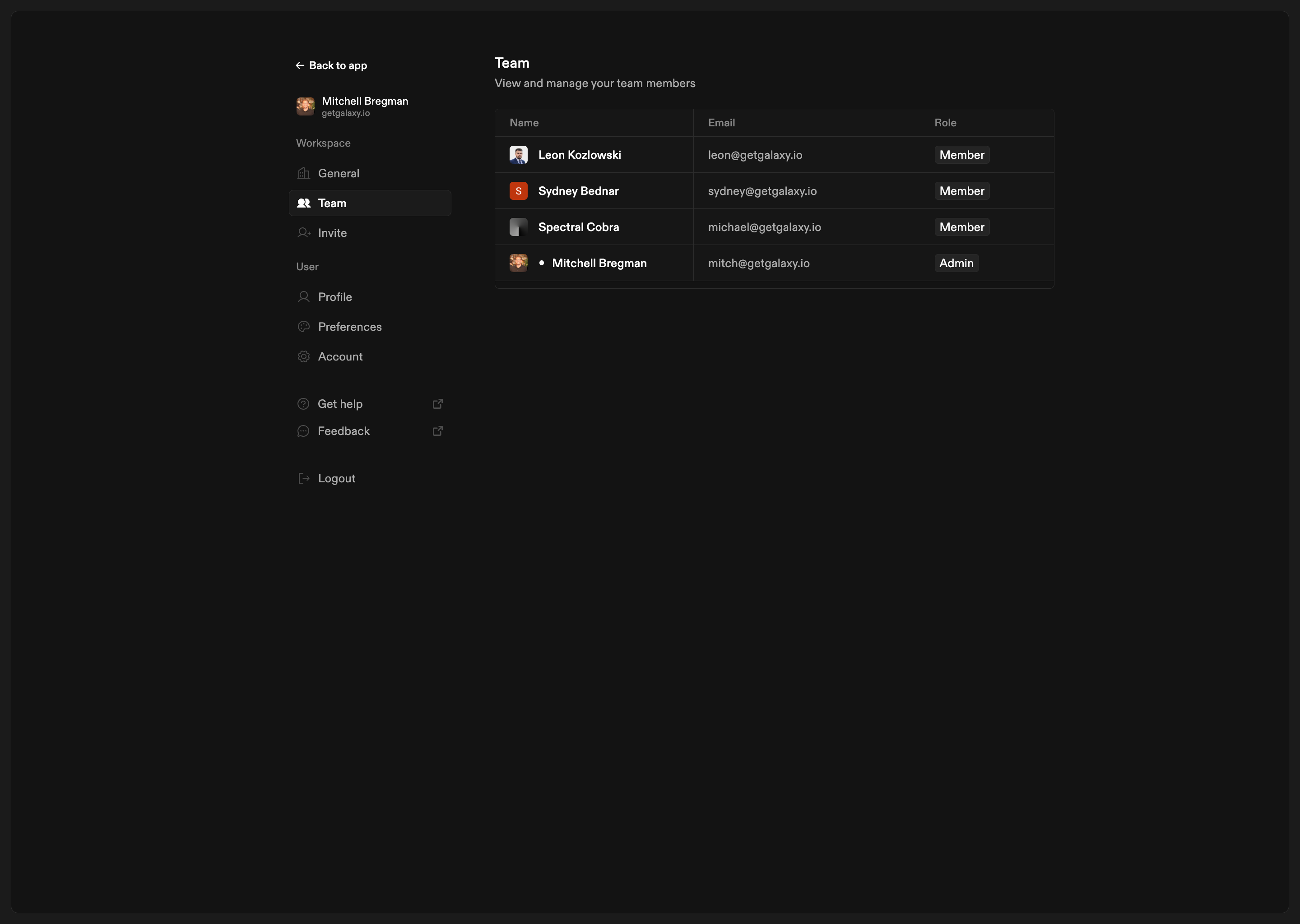
Team settings allow you to view and manage workspace members:- View team members: See all users who have access to your workspace
- Member information: View each team member’s name, email address, and access level (role)
- Current user indicator: See which team member is you (marked with an indicator)
Invite
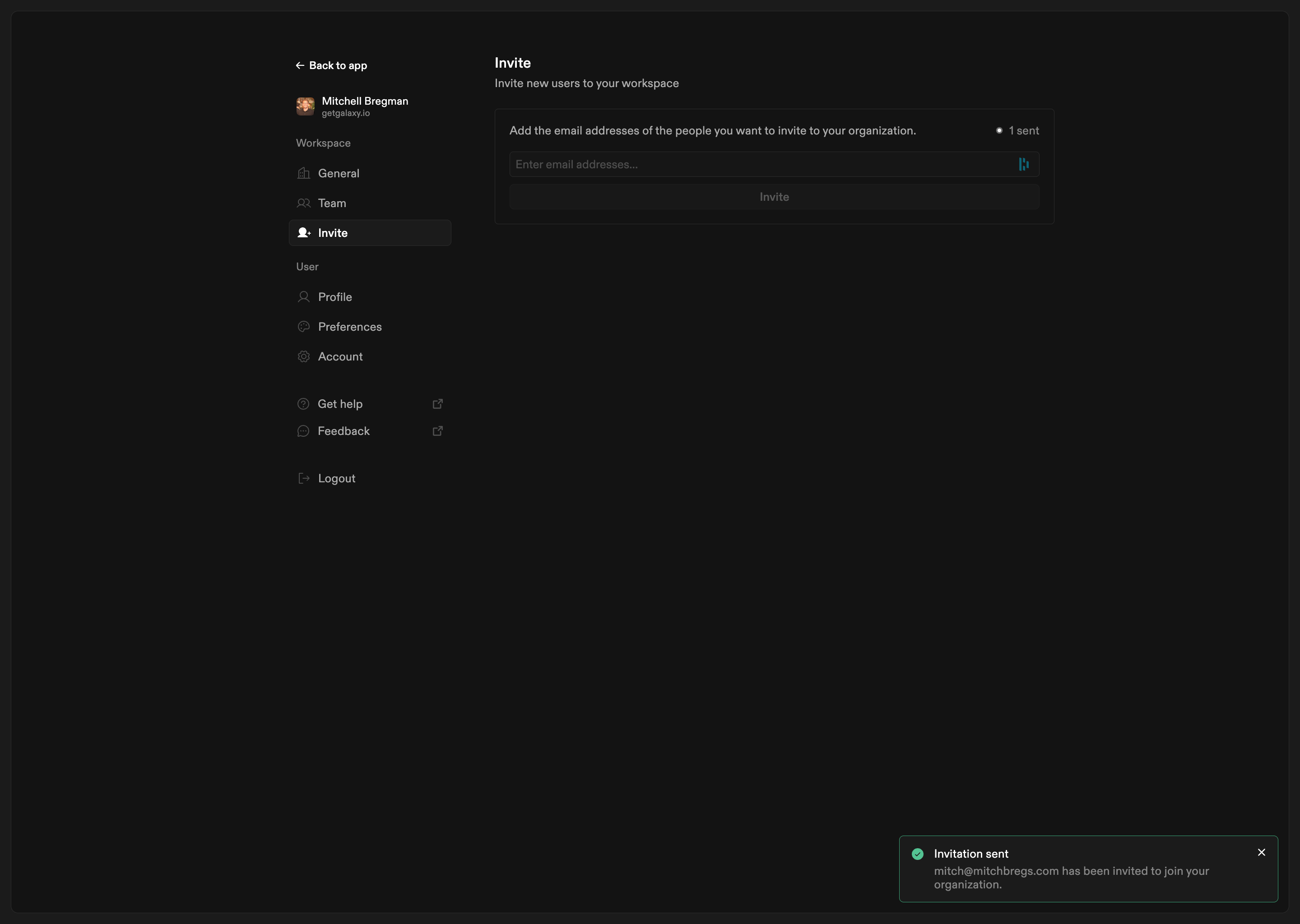
Invite settings allow you to add new users to your workspace:- Invite by email: Add email addresses of people you want to invite
- Send invitations: Invite multiple users at once
- Track invitations: See which invitations have been sent successfully
User Settings
User settings control personal configuration for individual users. They are organized into three sections:Profile
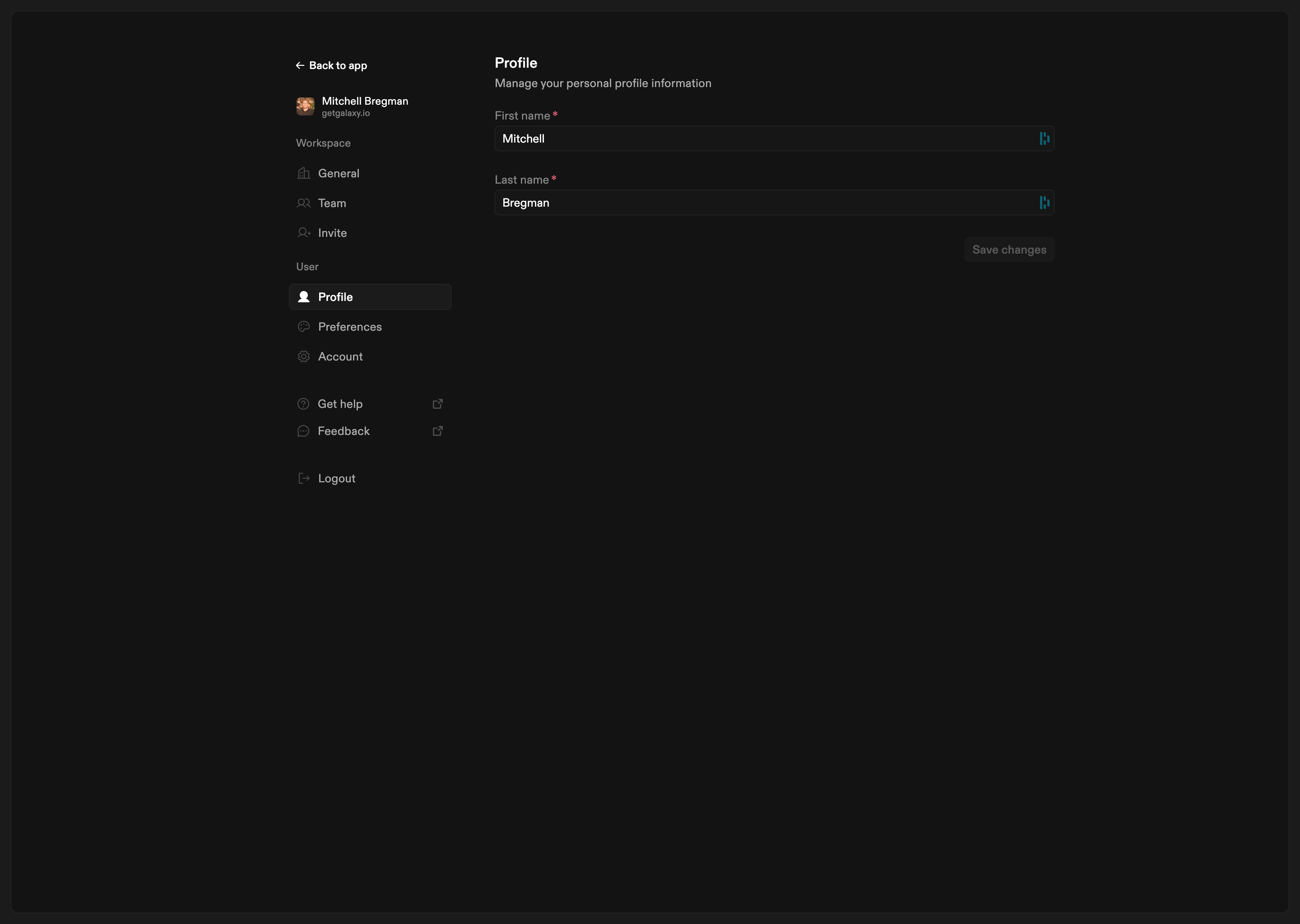
Profile settings control your personal information:- First name: Your first name
- Last name: Your last name
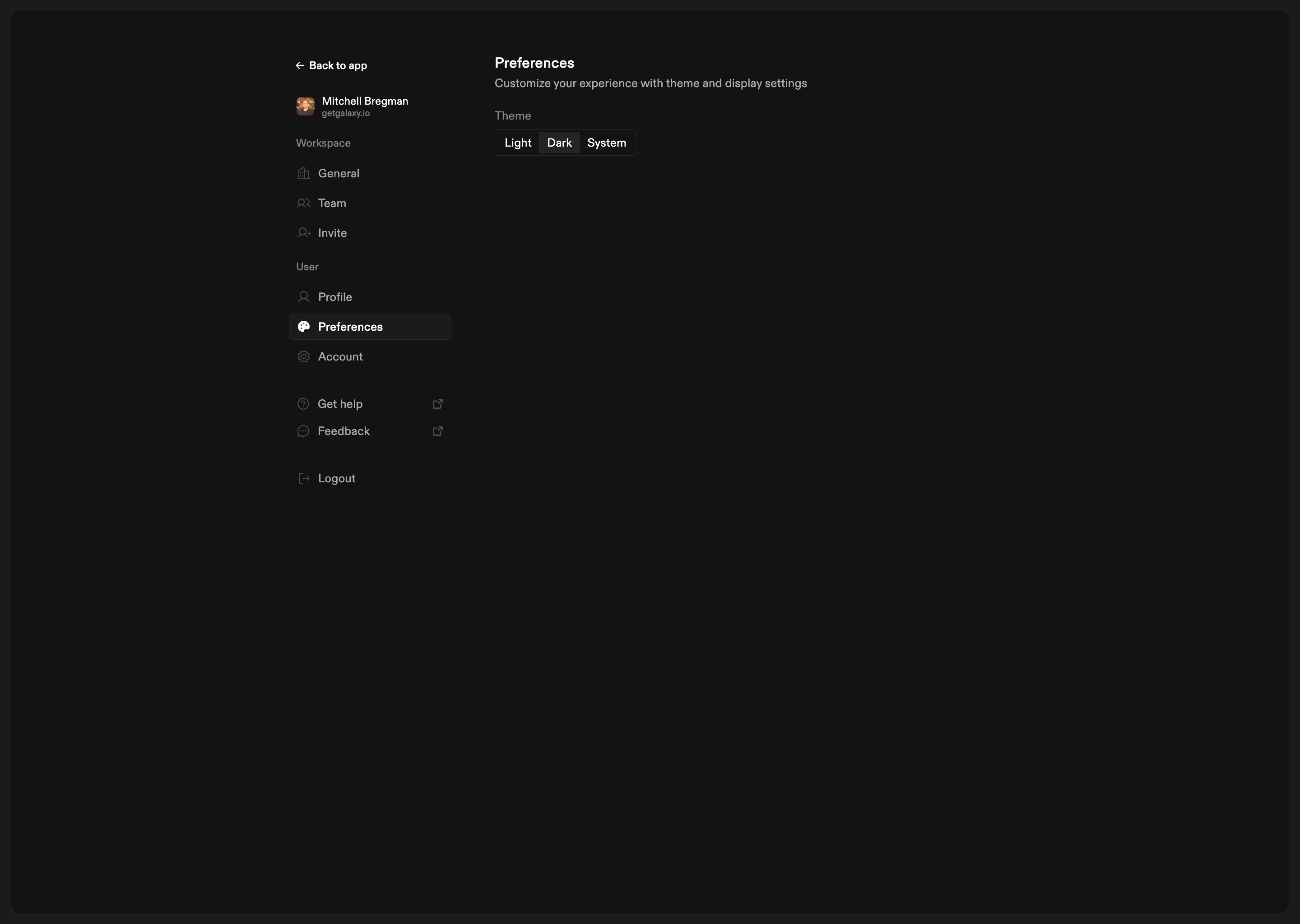
Preferences
Preferences settings control your display preferences:- Theme: Choose between Light, Dark, or System theme
- Light: Always use light theme
- Dark: Always use dark theme
- System: Use your system’s theme preference
Account
Account settings control account-related options. Additional account settings are coming soon.How Settings Work
Settings are organized into sections accessible from the Settings sidebar:- Navigate to Settings: Access the Settings page from the workspace navigation
- Select a section: Choose the workspace or user section you want to configure
- Make changes: Update configuration options as needed
- Save changes: Click “Save changes” to apply your updates
Workspace vs. User Settings
Settings are divided into workspace and user settings:- Workspace settings (General, Team, Invite): Affect the entire workspace and are typically managed by workspace administrators
- User settings (Profile, Preferences, Account): Affect only your personal experience and can be managed by any user