

PostgreSQL
Connect Galaxy to a PostgreSQL database to observe schemas, tables, columns, and relationships.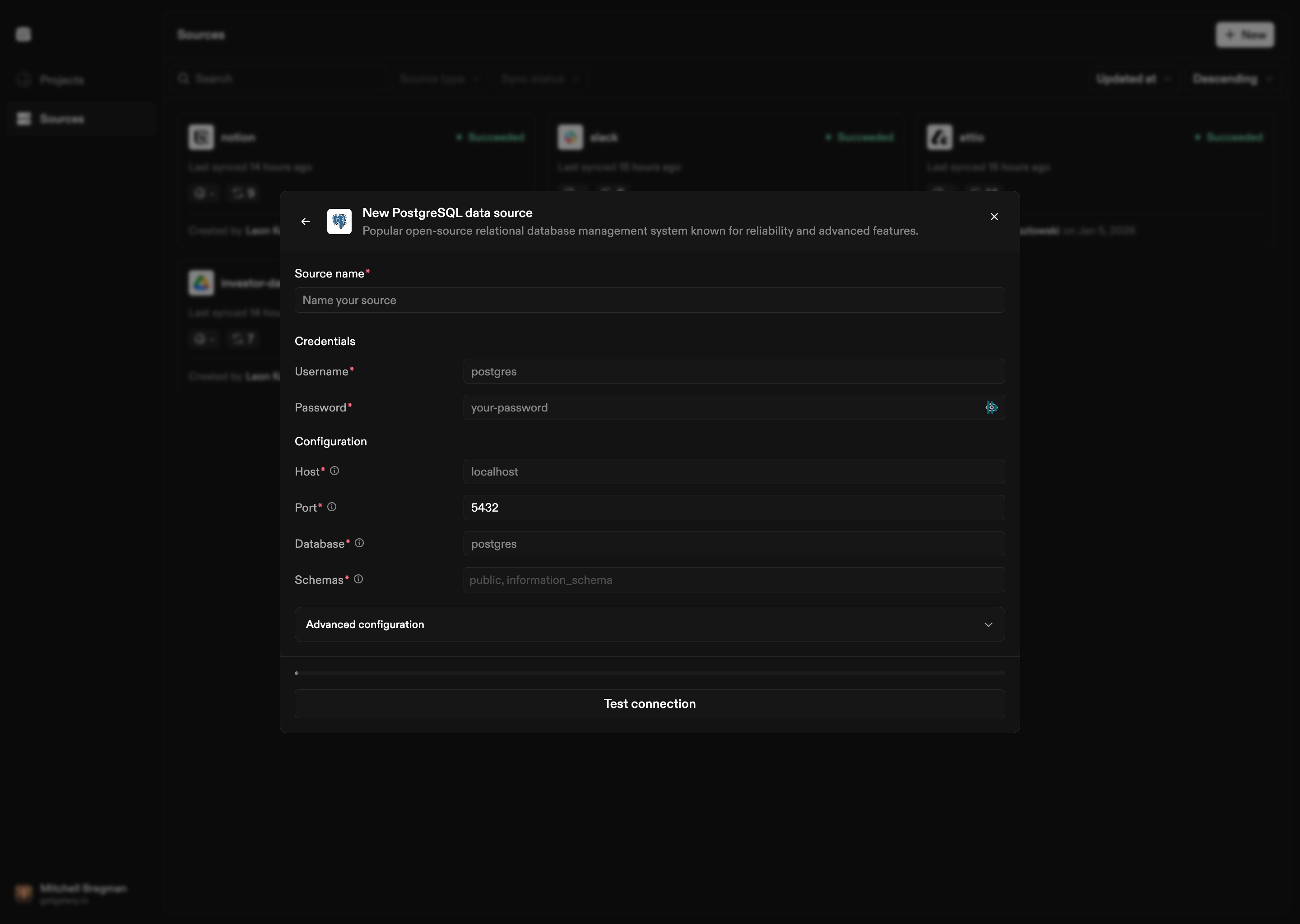
How to Connect
- Select PostgreSQL as the Source type
- Provide connection details:
- Host: Hostname or IP address of your PostgreSQL server
- Port: Port number (default: 5432)
- Database: Name of the database to connect to
- Username: Database username
- Password: Database password
- Select schemas: Choose which schemas Galaxy should observe
- Configure SSL mode: Choose SSL/TLS connection mode
- Set replication method: Choose how Galaxy detects changes:
- Standard cursor
- XMIN system column
- Write-Ahead Log CDC
- Optional SSH tunnel: Configure SSH tunneling if your database is behind a firewall
Configuration Options
Connection Settings
- Host: PostgreSQL server hostname or IP address
- Port: Database port (default: 5432)
- Database: Database name
- Username: Database username
- Password: Database password
- JDBC URL parameters: Optional additional JDBC connection parameters
Schema Selection
Select specific schemas to observe, or observe all schemas. Galaxy only reads structure from selected schemas.SSL Mode
- Disable: No SSL/TLS encryption
- Allow: Try SSL, allow non-SSL if SSL fails
- Prefer: Prefer SSL, allow non-SSL if SSL fails
- Require: Require SSL/TLS encryption
- Verify CA: Require SSL and verify server certificate against CA
- Verify Full: Require SSL and verify server certificate including hostname
Replication Methods
- Standard cursor: Uses a user-defined cursor to scan for changes
- XMIN system column: Uses PostgreSQL’s XMIN system column to detect changes
- Write-Ahead Log CDC: Uses PostgreSQL’s logical replication and WAL to capture changes in real-time
- Publication name: PostgreSQL publication name
- Replication slot: PostgreSQL replication slot name
SSH Tunneling
If your database is behind a firewall:- No tunnel: Direct connection (default)
- SSH key authentication: Use SSH key for tunnel authentication
- Password authentication: Use password for tunnel authentication